A few months ago, we gave you a peek into what it’s like to write for Figma. Now we’re back with some tried-and-true tips for copywriters working in the product.
If you’re anything like me, you might be terrified of hopping into a Figma file and breaking a design. As someone who has done this a few times, the good news is that most things in Figma are fixable. I’ll never forget the day I accidentally deleted a gigantic end-of-year project my team had been working on for months. That’s when I learned about version history, which I’ll get to in a minute.
Figma is often considered a platform for designers and developers, but it’s also an incredibly powerful tool for copywriters. Not only does it let you see your work in context and understand how users will experience your messaging, but it creates a space for you to collaborate with teammates to make and present better work. So, if you’re a writer looking to uplevel your Figma skills or work alongside your design partner, here are a few tips to help you get started.
- Command + Z is your best friend
Deleted something by accident? Moved a frame? Command + Z will undo your last move. - Get familiar with version history
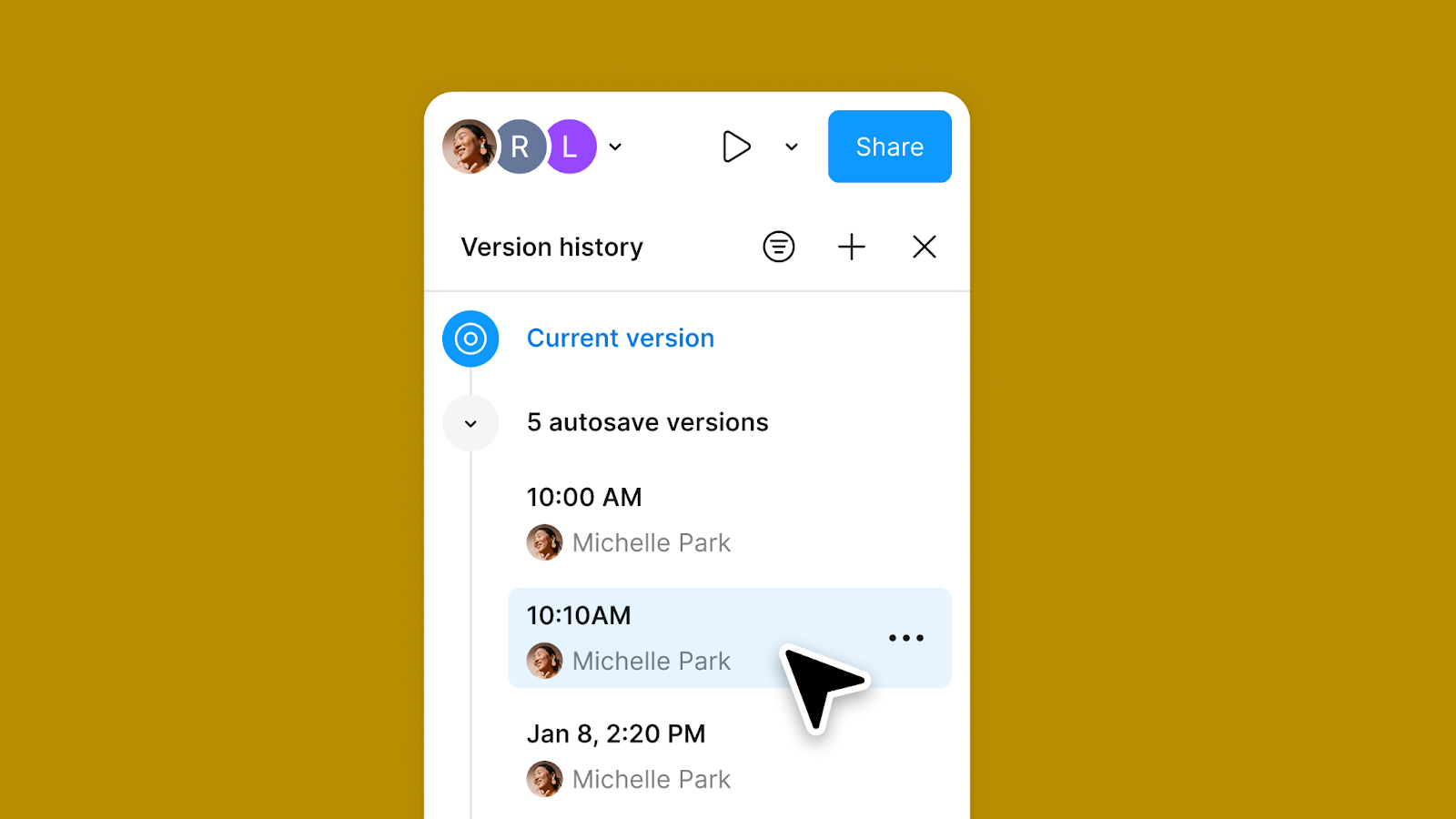
If you accidentally delete everything (we’ve all done it…), version history lets you go back to an earlier version of the file. Magic? Sure feels like it. You can learn more about version history here.
- Take the free Figma Design for beginners course
It’s 3 hours long, and it will save you tons of time. You’ll learn new shortcuts, find new ways of working, and feel more confident navigating Figma by the time you’re done. Even a little bit of Figma knowledge can take you a long way. - Ask your design partner how they prefer to collaborate in Figma
We all have different working styles. Schedule 30 minutes with your design partner to understand how you can naturally fit into their flow.
For example, some designers are comfortable with me working directly in their designs. Others prefer I work in a separate page where I can mix things up as I wish. Knowing how your design partner prefers to work can save you both time and eliminate potential frustration. - Work on your own page
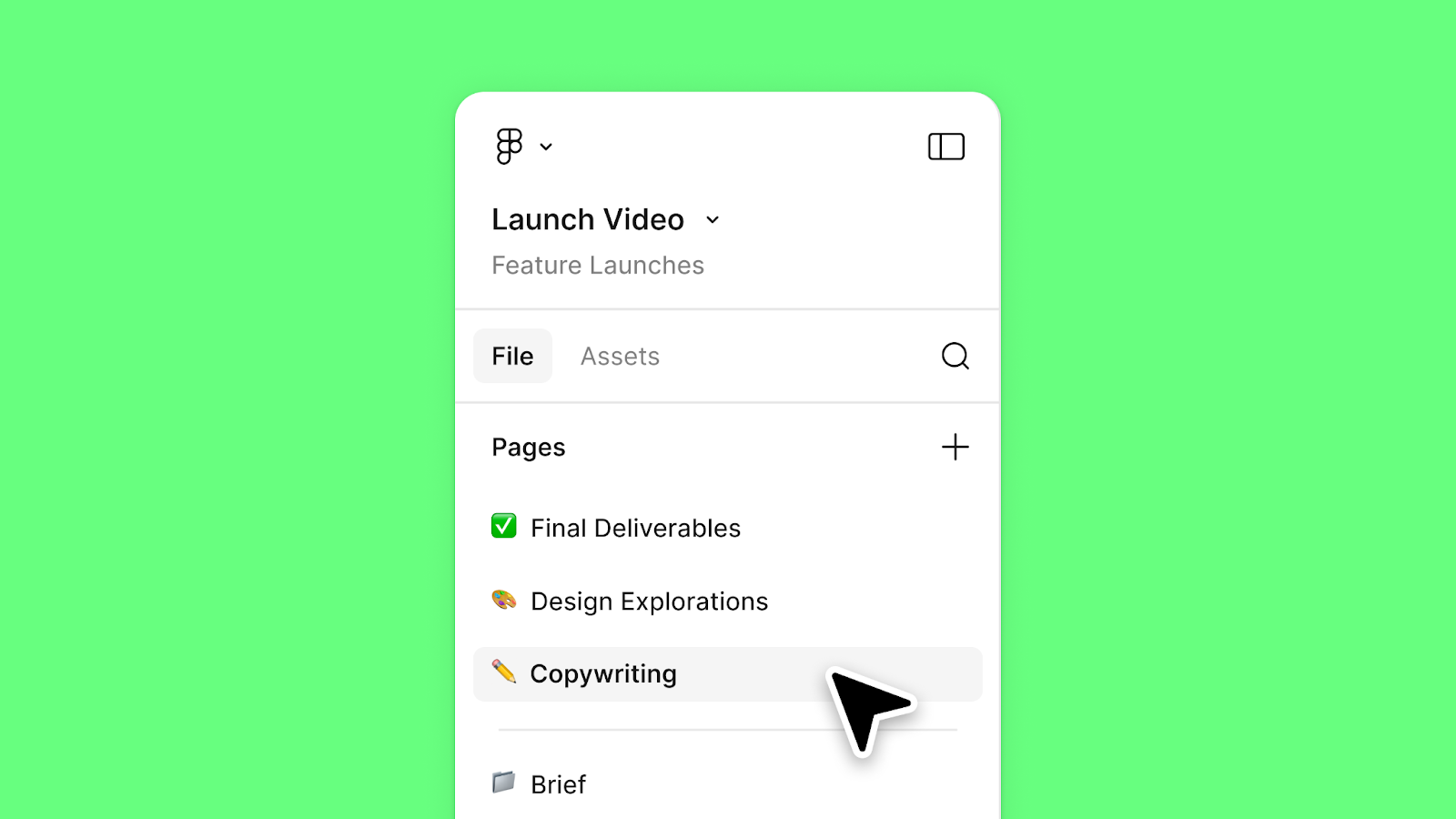
Building on the above, I generally draft copy on a separate page from the designers, while still working in the same file. This gives them space to focus, and me the freedom to explore.
This is as simple as copying the design over to my page, then writing a bunch of variations of copy. Once I land on a line I like, I’ll move it to the shared page with our final designs. Here’s how to create a new page in Figma if you aren’t familiar.
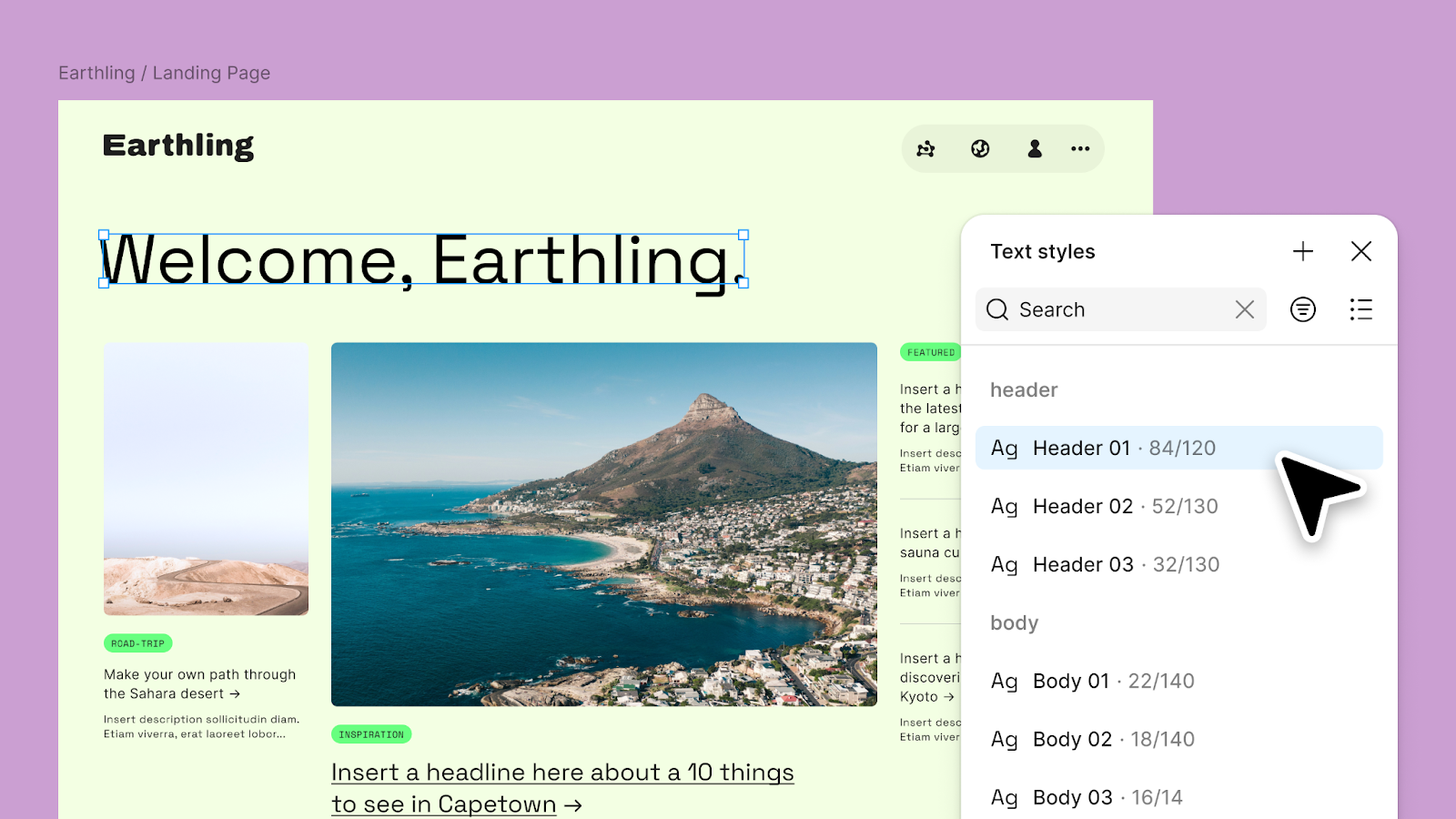
- Don’t be afraid to play with designs
Change the text size, move the copy on the design, play, play, play. How your words appear in a design affects how it feels. Of course, don’t expect your designers to abandon everything and adhere to where you land—but the design and copywriting process should be collaborative! Teamwork is a natural part of the process. I’ve had designers give me great lines, and I’ve worked with designers to ideate more accessible visuals. At the end of the day, we’re all consumers. Everyone can have an opinion on what looks and sounds good.
- Lay everything out in FigJam
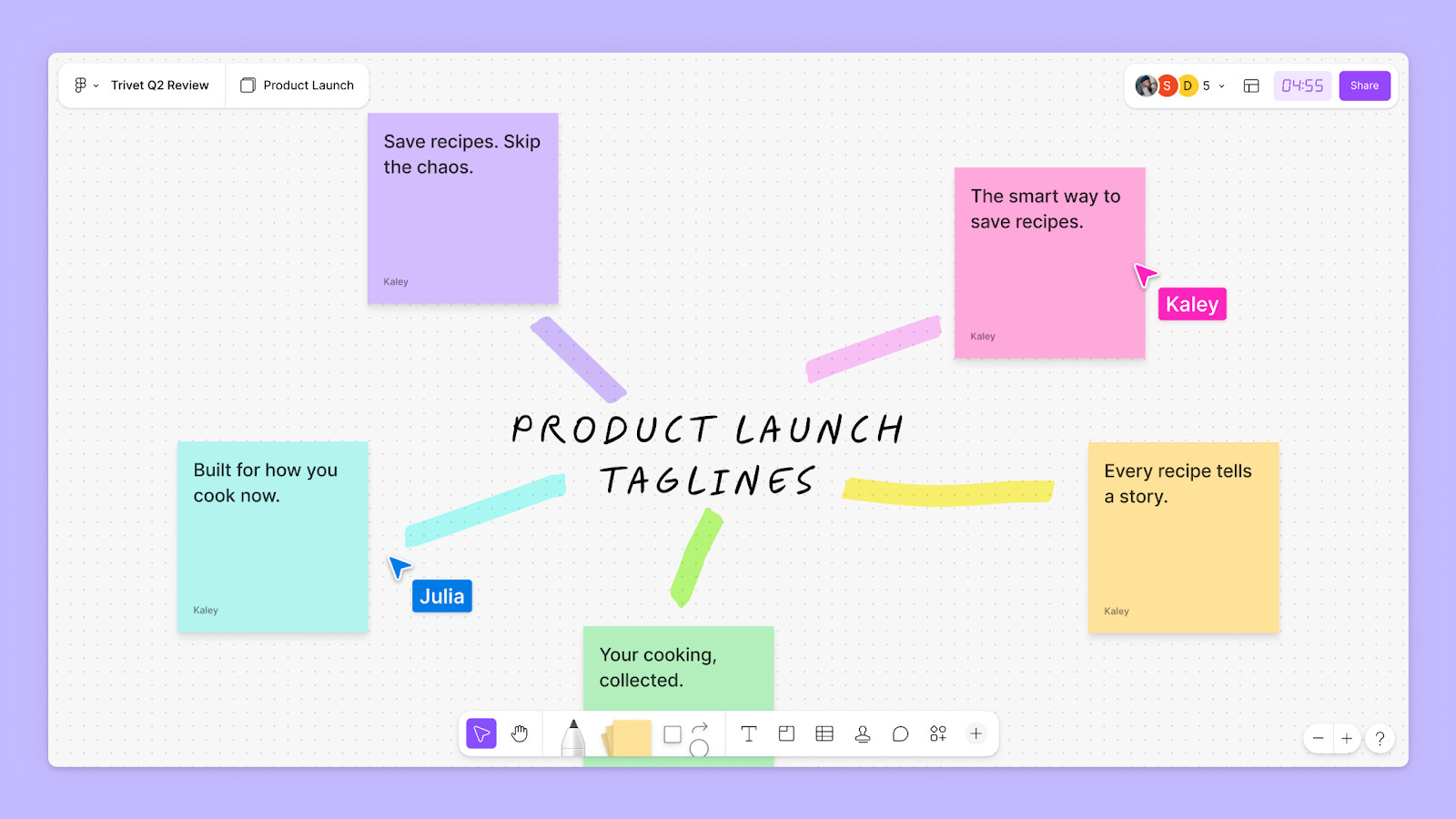
FigJam is the perfect place to outline a concept or think through an idea, especially in the early stages of a project. Use it to brainstorm with your team, build out a mind map, and collect feedback as you explore different directions. You can also ask Figma AI to take care of tedious tasks like creating flow charts, planning retros, or setting up a Gantt chart with a specified date range. It’s hugely helpful for visual whiteboarding when you need to see all your information in one place.
- Track feedback in a way that works best for you
I prefer to leave and receive feedback via stickies rather than comments. Hot take? Maybe. But hear me out.
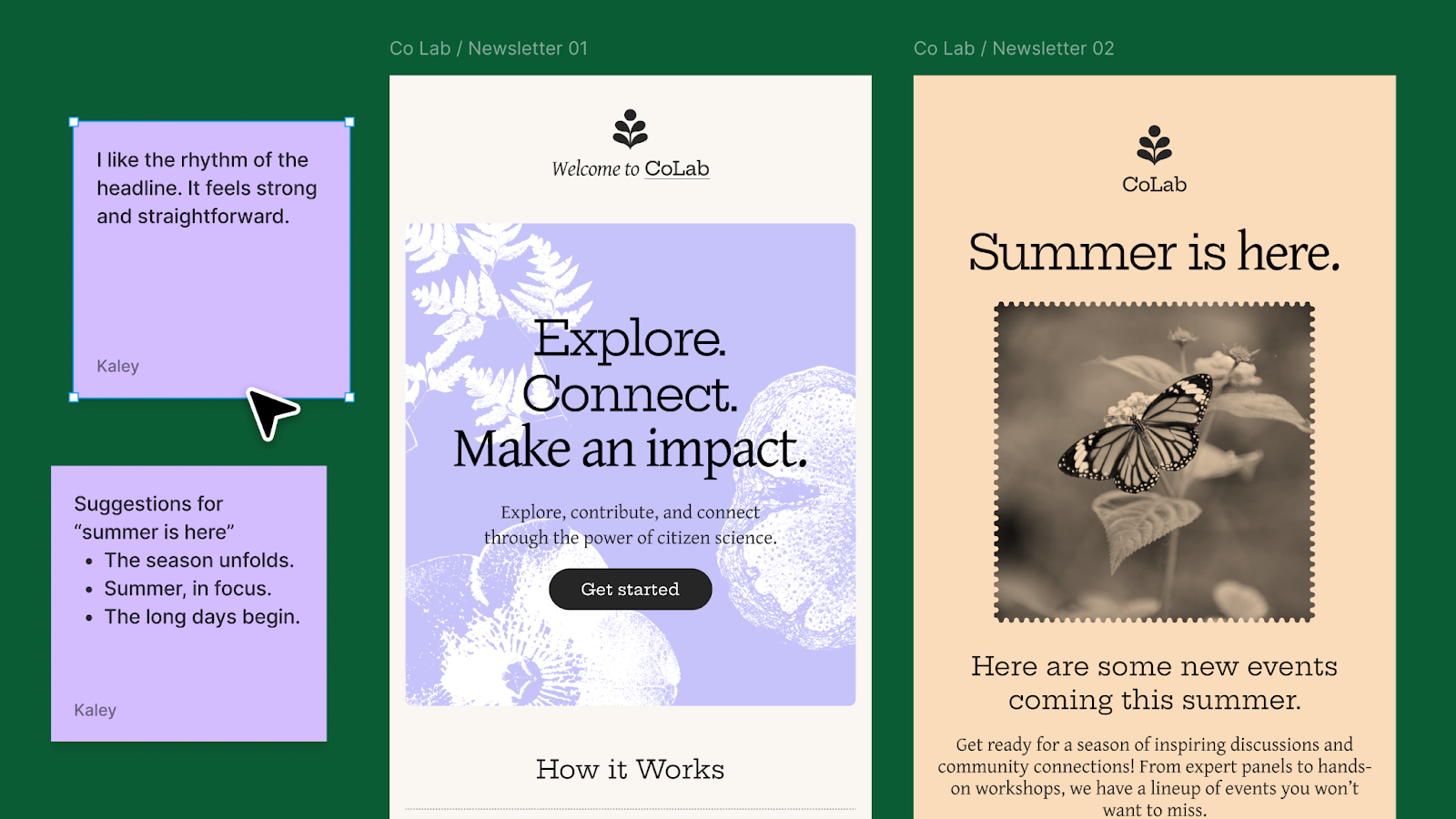
You can copy a sticky note from FigJam and paste it in Figma Design. From there, you can ask stakeholders to leave feedback on stickies throughout your file so you can easily see everything at once and reference their notes when you come back to make edits.
- Try presenting your work in Figma Slides
A big part of our job as copywriters is presenting our work—we need buy-in from clients, leadership, and partners across our organization. This often means writing a draft in a Google Doc, transferring it into Figma, and presenting the work somewhere else. But there’s an easier way. If you’re already working in Figma Design, you can copy and paste your work over to Figma Slides. This lets you keep Figma as your one source of truth, show copy in designs or interactive prototypes, and present work in a branded, beautiful way.
*Use the keyboard shortcut Command + Shift + C to copy a frame as a PNG. Paste it into your slides with Command + V.
- Start with templates from the Figma Community
Sometimes you don’t have a design partner at the ready, but you need a design to illustrate your idea. You can browse through thousands of free templates from the Figma Community to get started. You can find everything from websites to illustrations and icons. I personally love this slide deck template.
At Figma, one of our core beliefs is that design is everyone’s business, which means copywriters like you should feel at home in the product, too. Hopefully these tips help you feel more confident, but if you want to keep going down the rabbit hole, here are a few other articles to check out:
- Inside Figma: tips from the team that builds Figma
- How Figma’s UX writers use Figma
- The UX writer’s guide to Figma
- Why everyone can (and should) be a great storyteller
BIO
Kaley Aposporos is a writer based in San Diego. She’s currently a brand copywriter at Figma.
A few months ago, we gave you a peek into what it’s like to write for Figma. Now we’re back with some tried-and-true tips for copywriters working in the product.
If you’re anything like me, you might be terrified of hopping into a Figma file and breaking a design. As someone who has done this a few times, the good news is that most things in Figma are fixable. I’ll never forget the day I accidentally deleted a gigantic end-of-year project my team had been working on for months. That’s when I learned about version history, which I’ll get to in a minute.
Figma is often considered a platform for designers and developers, but it’s also an incredibly powerful tool for copywriters. Not only does it let you see your work in context and understand how users will experience your messaging, but it creates a space for you to collaborate with teammates to make and present better work. So, if you’re a writer looking to uplevel your Figma skills or work alongside your design partner, here are a few tips to help you get started.
- Command + Z is your best friend
Deleted something by accident? Moved a frame? Command + Z will undo your last move. - Get familiar with version history
If you accidentally delete everything (we’ve all done it…), version history lets you go back to an earlier version of the file. Magic? Sure feels like it. You can learn more about version history here.
- Take the free Figma Design for beginners course
It’s 3 hours long, and it will save you tons of time. You’ll learn new shortcuts, find new ways of working, and feel more confident navigating Figma by the time you’re done. Even a little bit of Figma knowledge can take you a long way. - Ask your design partner how they prefer to collaborate in Figma
We all have different working styles. Schedule 30 minutes with your design partner to understand how you can naturally fit into their flow.
For example, some designers are comfortable with me working directly in their designs. Others prefer I work in a separate page where I can mix things up as I wish. Knowing how your design partner prefers to work can save you both time and eliminate potential frustration. - Work on your own page
Building on the above, I generally draft copy on a separate page from the designers, while still working in the same file. This gives them space to focus, and me the freedom to explore.
This is as simple as copying the design over to my page, then writing a bunch of variations of copy. Once I land on a line I like, I’ll move it to the shared page with our final designs. Here’s how to create a new page in Figma if you aren’t familiar.
- Don’t be afraid to play with designs
Change the text size, move the copy on the design, play, play, play. How your words appear in a design affects how it feels. Of course, don’t expect your designers to abandon everything and adhere to where you land—but the design and copywriting process should be collaborative! Teamwork is a natural part of the process. I’ve had designers give me great lines, and I’ve worked with designers to ideate more accessible visuals. At the end of the day, we’re all consumers. Everyone can have an opinion on what looks and sounds good.
- Lay everything out in FigJam
FigJam is the perfect place to outline a concept or think through an idea, especially in the early stages of a project. Use it to brainstorm with your team, build out a mind map, and collect feedback as you explore different directions. You can also ask Figma AI to take care of tedious tasks like creating flow charts, planning retros, or setting up a Gantt chart with a specified date range. It’s hugely helpful for visual whiteboarding when you need to see all your information in one place.
- Track feedback in a way that works best for you
I prefer to leave and receive feedback via stickies rather than comments. Hot take? Maybe. But hear me out.
You can copy a sticky note from FigJam and paste it in Figma Design. From there, you can ask stakeholders to leave feedback on stickies throughout your file so you can easily see everything at once and reference their notes when you come back to make edits.
- Try presenting your work in Figma Slides
A big part of our job as copywriters is presenting our work—we need buy-in from clients, leadership, and partners across our organization. This often means writing a draft in a Google Doc, transferring it into Figma, and presenting the work somewhere else. But there’s an easier way. If you’re already working in Figma Design, you can copy and paste your work over to Figma Slides. This lets you keep Figma as your one source of truth, show copy in designs or interactive prototypes, and present work in a branded, beautiful way.
*Use the keyboard shortcut Command + Shift + C to copy a frame as a PNG. Paste it into your slides with Command + V.
- Start with templates from the Figma Community
Sometimes you don’t have a design partner at the ready, but you need a design to illustrate your idea. You can browse through thousands of free templates from the Figma Community to get started. You can find everything from websites to illustrations and icons. I personally love this slide deck template.
At Figma, one of our core beliefs is that design is everyone’s business, which means copywriters like you should feel at home in the product, too. Hopefully these tips help you feel more confident, but if you want to keep going down the rabbit hole, here are a few other articles to check out:
- Inside Figma: tips from the team that builds Figma
- How Figma’s UX writers use Figma
- The UX writer’s guide to Figma
- Why everyone can (and should) be a great storyteller
BIO
Kaley Aposporos is a writer based in San Diego. She’s currently a brand copywriter at Figma.
Further Reading